How to Add a Website to Bing Webmaster Tools: A Step-by-Step Guide
Learn how to add your site to Bing Webmaster Tools, verify ownership manually or via Google Search Console, and speed up page indexing in Bing.

To add your site to Bing, go to bing.com/webmasters/home, log in with a Microsoft, Google, or Facebook account, and enter your domain URL. The whole process takes 5-10 minutes. After that, verify site ownership using one of three methods, and your site will appear in the dashboard.
Why add your site to Bing
According to StatCounter, Bing holds about 4-5% of the US search market and powers search for Yahoo. If your site isn't registered in Bing Webmaster Tools, the search engine might still find it, but it will do so slowly and without considering your priorities.
Bing Webmaster Tools offers three key features: search visibility reports, manual URL submission for indexing, and keyword research. All of this is free and available immediately after verification.
What you'll need
- A Microsoft account (Outlook, Hotmail) or a Google/Facebook account to log in.
- Access to your site's code or hosting DNS panel (required for verification).
- A
sitemap.xmlfile (recommended, but not strictly required right away). If your site runs on WordPress, plugins like Yoast SEO and RankMath generate asitemap.xmlautomatically; the URL is typicallyhttps://example.com/sitemap_index.xml. - If your site is already verified in Google Search Console, verification takes about two minutes via import.
Method 1: Import from Google Search Console
The fastest way. If your site is already added and verified in Google Search Console, Bing will automatically import the site list and ownership verification.
- Go to bing.com/webmasters/home and click the sign-in button.
- Log in using the Google account linked to your Search Console.
- Once logged in, the system will prompt you to import your sites. Click "Import".
- Select the sites you want to add and confirm the import.
Bing will verify ownership via Google and add the site without any extra steps.
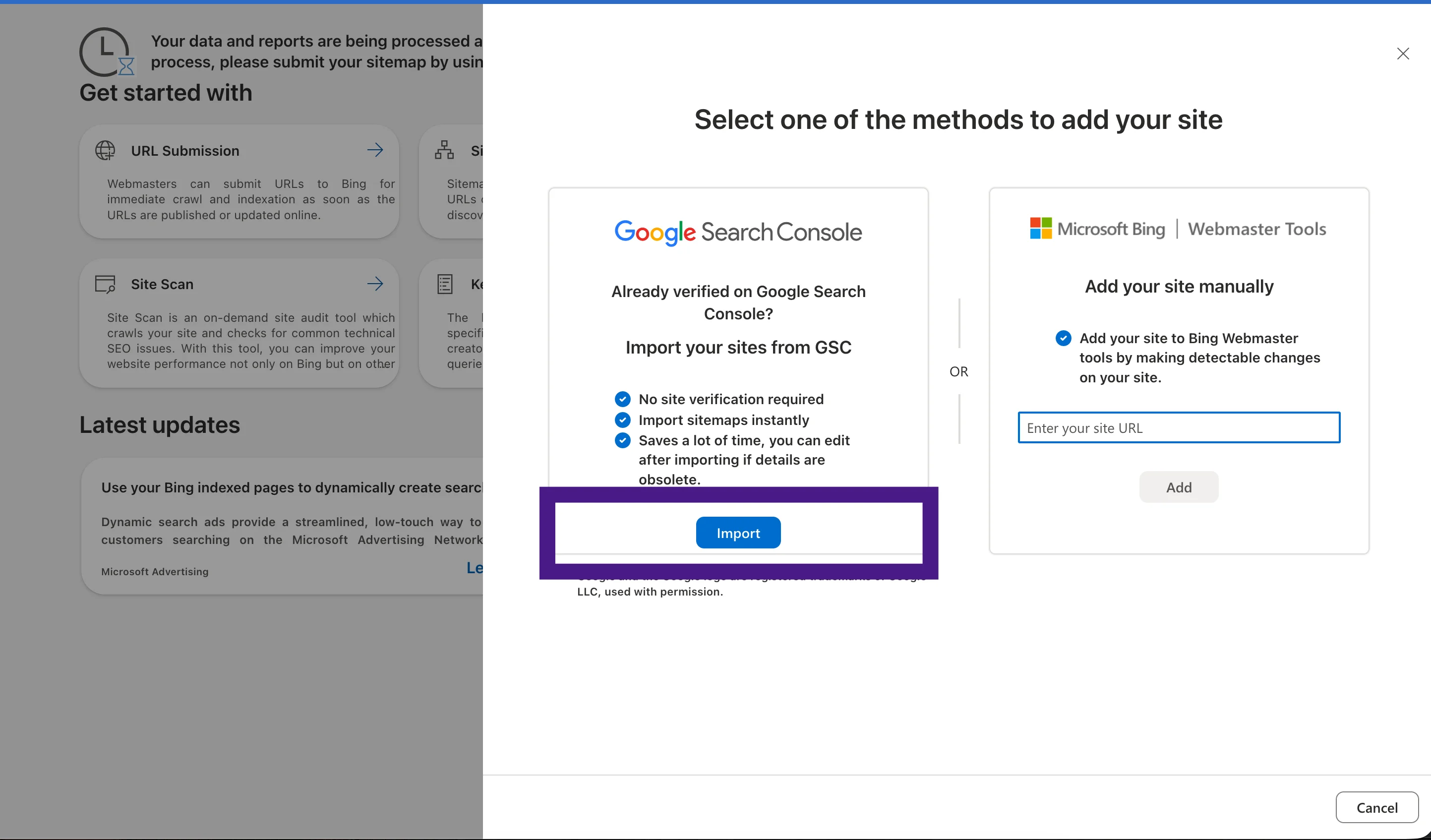 Screenshot: Google Search Console import screen in Bing Webmaster Tools
Method 2: Add your site to Bing manually
If you don't use Search Console or want to add the domain directly:
- Log in to bing.com/webmasters/home.
- On the main dashboard, click "Add a site".
- Enter your site's full URL:
https://example.com. Make sure to use the exact protocol and subdomain you run. - Click "Add".
- The verification page will open. Complete the ownership verification using the instructions in the next section.
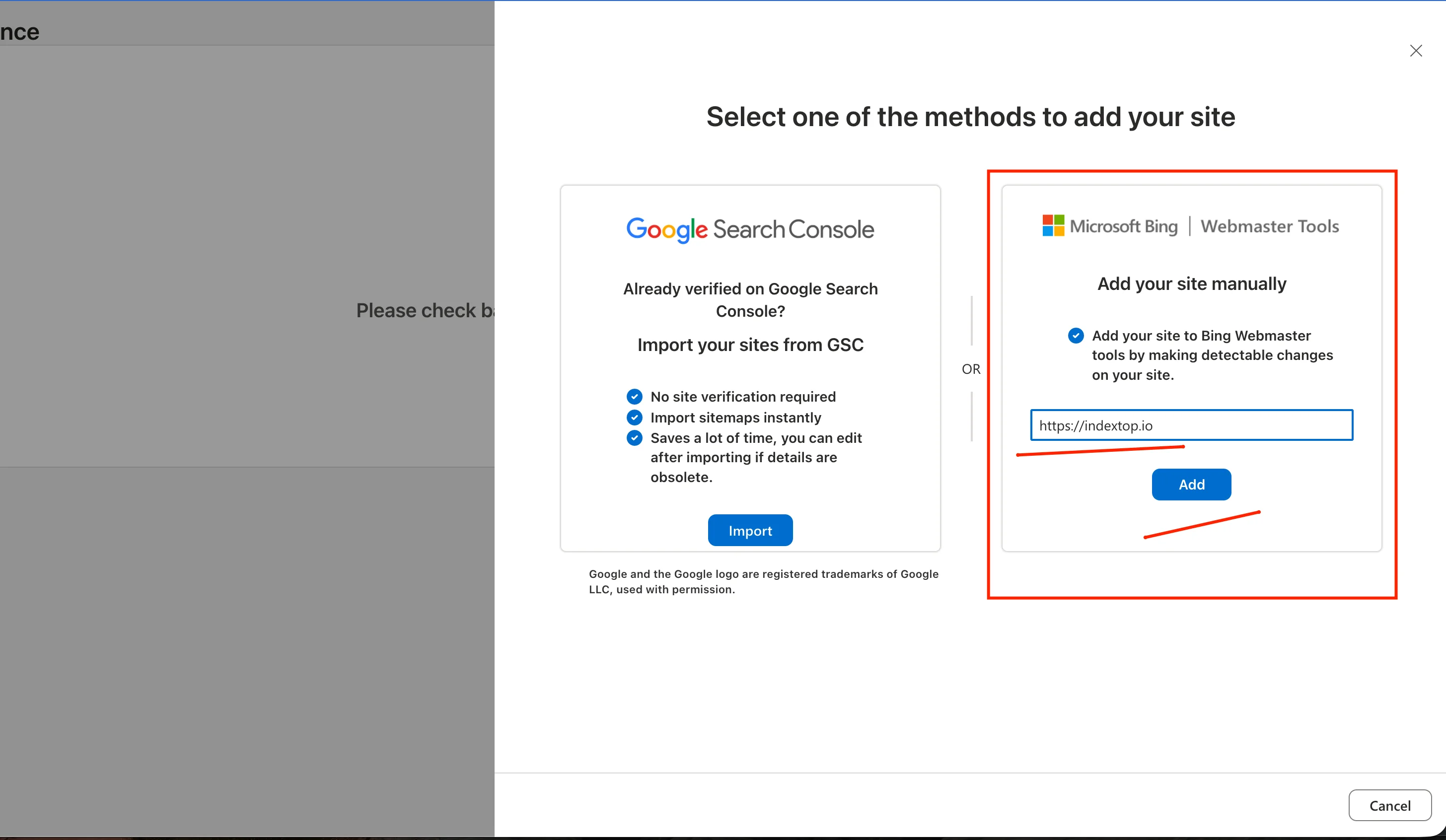 Screenshot: URL input field when adding a site manually
How to verify site ownership
Bing offers three verification methods. They all achieve the same result, so choose the one that is easiest for you technically.
XML File
Download the BingSiteAuth.xml file from the dashboard and upload it to your site's root directory. Once uploaded, the URL https://example.com/BingSiteAuth.xml should open in your browser. Then click "Verify".
Meta Tag
Copy the tag (which looks like <meta name="msvalidate.01" content="...">) and paste it into the <head> section of your homepage. Then click "Verify".
CNAME Record
Add a CNAME record to your domain's DNS settings using the details from the dashboard. This method is highly reliable, but DNS changes can take 24-48 hours to propagate.
Tab and button names in the Bing Webmaster Tools interface changed in 2023 and 2024, so check the current layout when setting it up.
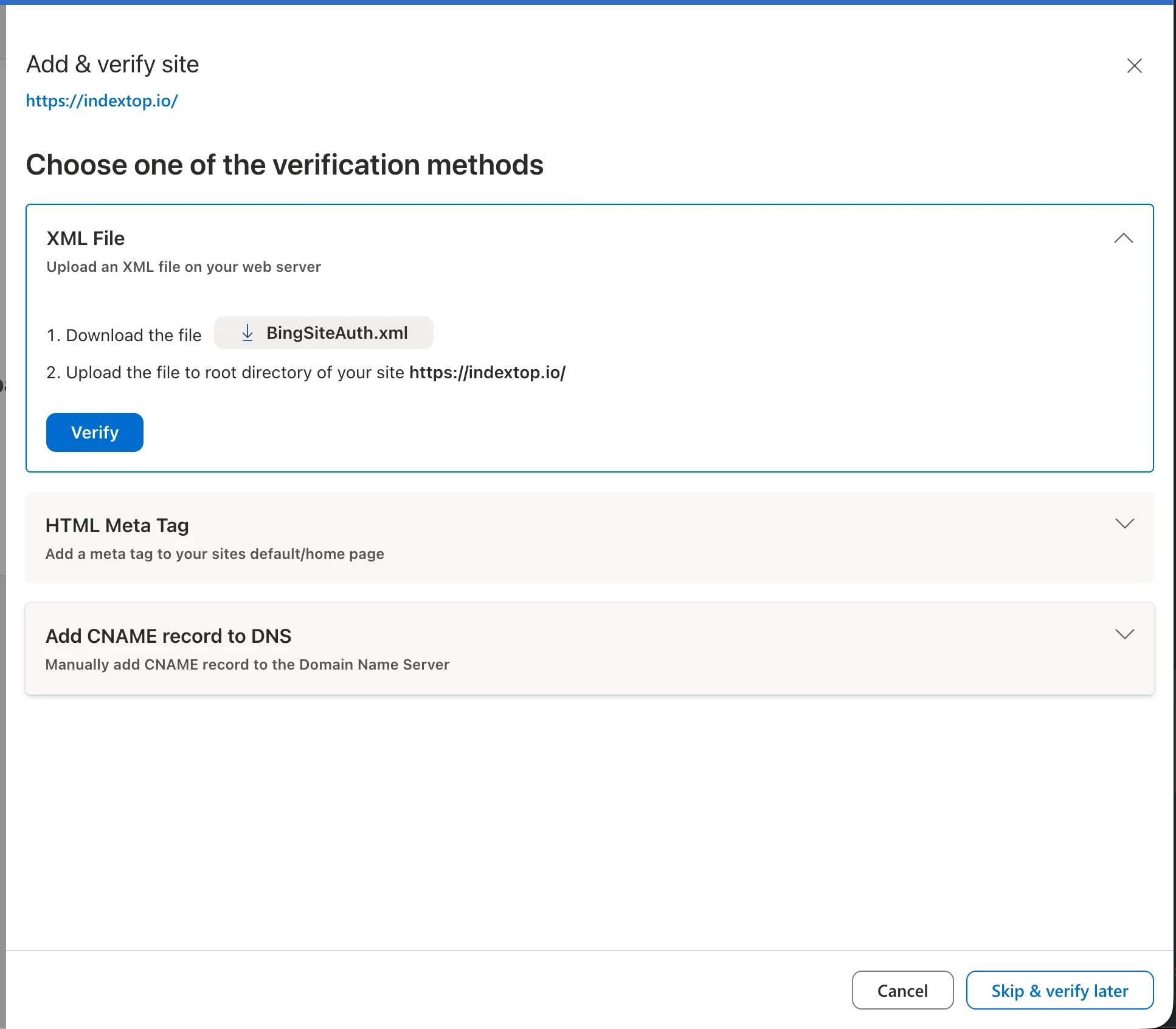 Screenshot: choosing a verification method in Bing Webmaster Tools
What to do after verification
First, go to the "Sitemaps" section and add your sitemap URL. This is usually https://example.com/sitemap.xml. This helps Bing discover new pages faster.
Next, open "URL Submission" and manually submit your priority pages. The limit of up to 10,000 URLs per day covers most entire websites. This is especially useful when launching a new site or after publishing content in bulk.
In the "SEO Reports" section, Bing flags technical errors that Google Search Console often misses. Check for these four types of issues:
- Pages returning 4xx or 5xx status codes that the bot cannot access;
- Duplicate
<title>and<meta description>tags across different URLs; - Pages with slow server response times;
- URLs accidentally blocked in
robots.txt.
If your site's content updates frequently, consider using IndexNow, an open protocol supported by Bing since 2021. It notifies the search engine about page changes in real time, eliminating the need for manual submissions via URL Submission. Yoast SEO and RankMath support IndexNow out of the box.
Common setup mistakes
Incorrect protocol or subdomain
Bing treats http://example.com, https://example.com, and https://www.example.com as separate sites. Add both versions if you aren't sure which one is your primary domain.
XML file not uploaded to the root directory
The verification file must sit in the root directory and be accessible at https://example.com/BingSiteAuth.xml. If it's placed in a subfolder like /images/ or /upload/, Bing won't find it.
Meta tag added to a single page instead of the template
Bing looks for the tag specifically on the homepage, so technically, adding it only there is enough. However, if your CMS overwrites the <head> section during an update, the meta tag will disappear. Insert it into your main template instead.
Clicking "Verify" immediately after uploading the file
Your server cache might return a 404 error for a few seconds after the upload. Wait 1-2 minutes, verify that the file opens via its direct link in your browser, and then click "Verify".
Frequently Asked Questions
Do I have to pay for Bing Webmaster Tools?
How long does verification take?
Can I add multiple sites to a single Bing Webmaster account?
What should I do if verification fails?
BingSiteAuth.xml opens via a direct link without any redirects. For the meta tag, ensure it is placed inside the <head> section, not the <body>.Do I need to register separately with Yahoo?
Does adding my site speed up indexing?
Is submitting a sitemap mandatory?
Adding your site to Bing Webmaster Tools takes less than 15 minutes. Once verified, check out "SEO Reports" and "URL Submission"-these two tabs will deliver real value within the first few days.
Read also

How to Install Google Analytics on Your Website: A Step-by-Step Guide
A step-by-step guide to setting up Google Analytics 4 on your website. Learn how to create an account, configure a data stream, and install the code without any coding skills.

How to Add Your Site to Yandex Webmaster and the Search Index: A Step-by-Step Guide
Step-by-step guide to adding your website to Yandex Webmaster. Learn how to verify domain ownership using four different methods and successfully get your pages indexed.