How to Install Yandex Metrica: A Step-by-Step Guide
Learn how to set up a Yandex Metrica counter, configure Webvisor, and install the tracking code via CMS or HTML to monitor traffic and user behavior.

Yandex Metrica is a free web analytics service from Yandex. It helps you track how many people visit your site, where they come from, which pages they view, and where they drop off. In this guide, we’ll walk through how to create a tag, install the code on your site, verify the setup, and avoid common pitfalls. This manual is suitable for both CMS users and those who manually edit HTML.
The Metrica interface was verified by our editors at the time of publication. Yandex occasionally updates its settings layout; while menu names might differ by a word or two, the logic remains the same.
TL;DR
- Sign up or log in with your Yandex account at https://metrica.yandex.com/.
- Create a tag, specify your domain, and enable Webvisor immediately.
- Copy the tag code and paste it into the
<head>of all pages. - For CMS platforms (WordPress, Tilda, Bitrix, Wix), use built-in fields or plugins.
- Verify the installation in "Settings → Tag code": the status should change to "working."
- Set up 3-5 basic goals: button clicks, form submissions, or key page views.
- After installation, check the "Sources," "Heatmaps," and "Webvisor" reports-otherwise, the setup won't pay off.
What is Yandex Metrica and why should you install it?
Yandex Metrica collects anonymized data about visitors: their devices, region, traffic source, and on-page behavior. Unlike built-in CMS counters, it offers two unique tools: Webvisor (video-like recordings of visitor actions) and Heatmaps (visual maps of clicks and scrolling).
Without analytics, you're flying blind. You might run ads, send newsletters, or update your design without any way to measure what worked. Once the tag is installed, you get a clear picture: which channels drive customers, which pages are stalling your funnel, and what users do right before they leave.
The service is completely free, with no traffic limits for most websites.
Metrica vs. Google Analytics: In Brief
People often ask which one to choose. Here’s the breakdown:
- Metrica is stronger for the Russian-speaking web: it identifies Yandex traffic sources better, includes Webvisor and Heatmaps out of the box, offers native integration with Yandex Direct, and has a localized interface.
- Google Analytics 4 is better for international traffic, offers more flexibility for events and attribution, and integrates seamlessly with Google Ads and BigQuery. However, some reports may be unstable in Russia without a VPN.
There is no conflict between them; many sites run both tags for cross-verification. For Russian-language sites, Metrica is usually the priority, with GA4 as a supplement.
What you’ll need before installation
Gather these items beforehand to complete the setup in 15-20 minutes:
- A Yandex account. It’s best to use a dedicated business email rather than a personal one.
- Access to your site’s code or CMS admin panel. For WordPress, you’ll need FTP or admin rights; for Tilda, Wix, or Bitrix, your standard login is enough.
- Your website address in
example.comformat (without http or slashes). - A Privacy Policy and cookie banner. Under data protection laws (like 152-FZ or GDPR), you are required to notify users about data collection and obtain consent. While Metrica works technically without this, you risk legal fines. At minimum, you need a first-visit banner, a Privacy Policy page mentioning Metrica, and a link to that policy in your footer. For WordPress, plugins like Cookie Notice or Complianz work well; Tilda has a built-in T855 block.
- 5-10 minutes for post-install verification.
If you don’t have permission to edit code or lack the necessary CMS plugin, coordinate with your developer in advance. Inserting the code usually takes five minutes, but you can't do it without access.
Step 1. Create a tag in the Metrica interface
Go to https://metrica.yandex.com/ and log in. If you don't have an account, click "Create an account" and complete the standard registration.
Once logged in, you'll see your tag list. If this is your first one, click the large "Add tag" button.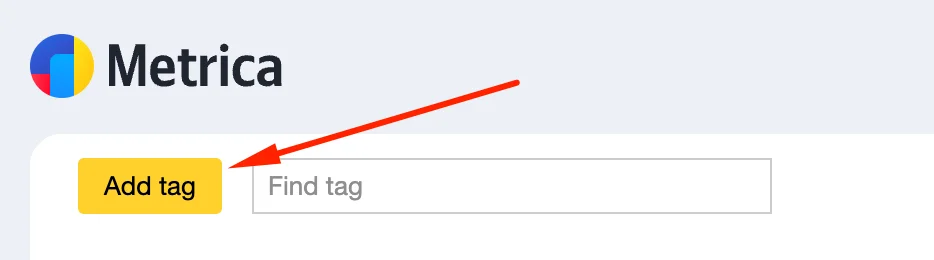
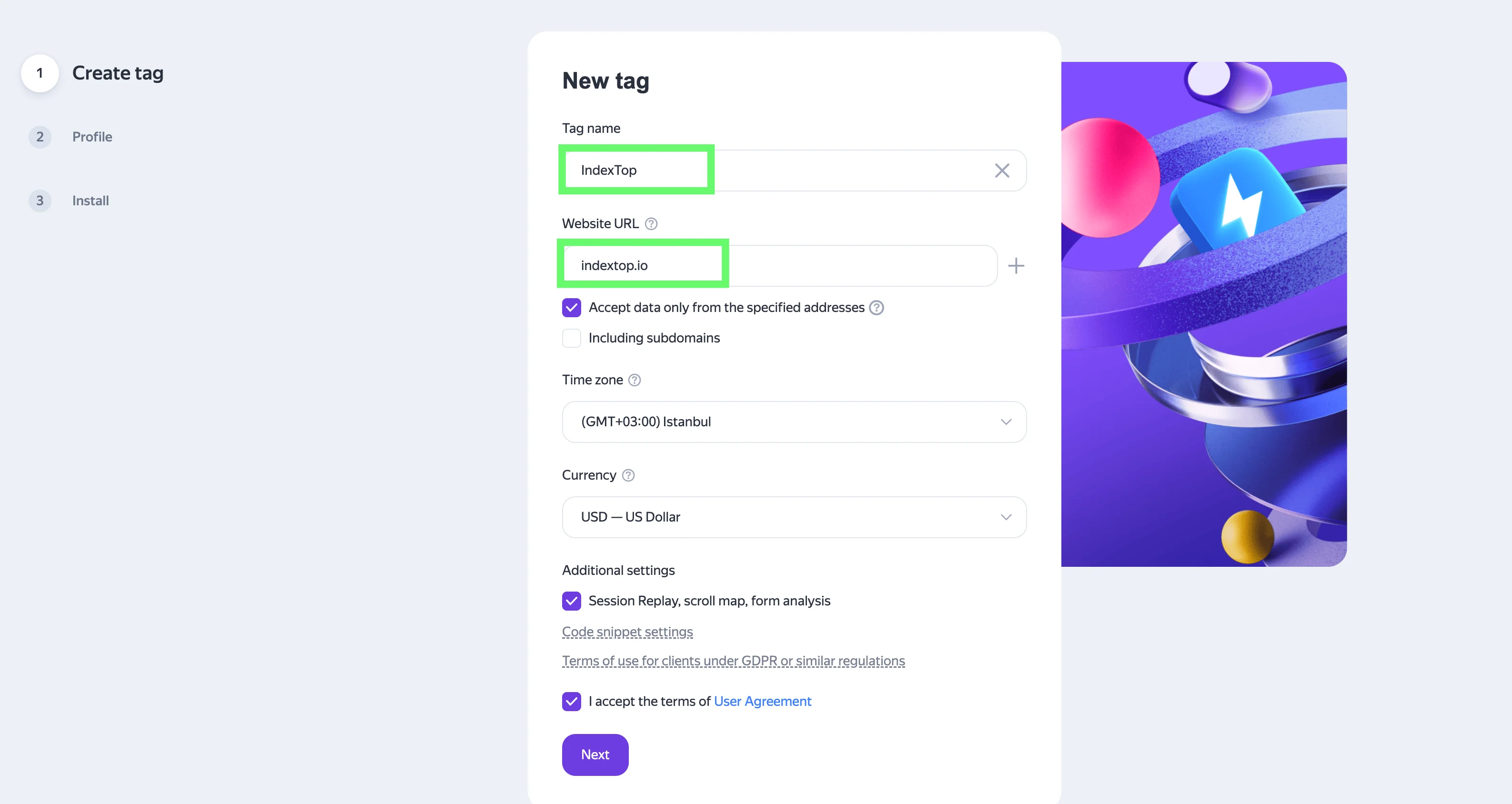
In the creation form, fill out:
- Tag name. Anything recognizable. I usually use the domain name, e.g., "shop-example-com."
- Website URL. Enter it without
https://, justexample.com. If your site has multiple domains or subdomains, add them in the "Additional addresses" field. - Time zone. This affects how data is segmented by day in your reports. Set it to your actual time zone.
- Accept the Terms of Use. Check the box.
Next, toggle these settings on immediately:
- Session Replay, scroll map, form analytics. Without these, you lose half of Metrica’s value.
- Automatic goals. Metrica will start tracking clicks on phone numbers, emails, and form submissions automatically. This is great for getting started.
Click "Create tag." The code page will open.
Step 2. Copy the tag code
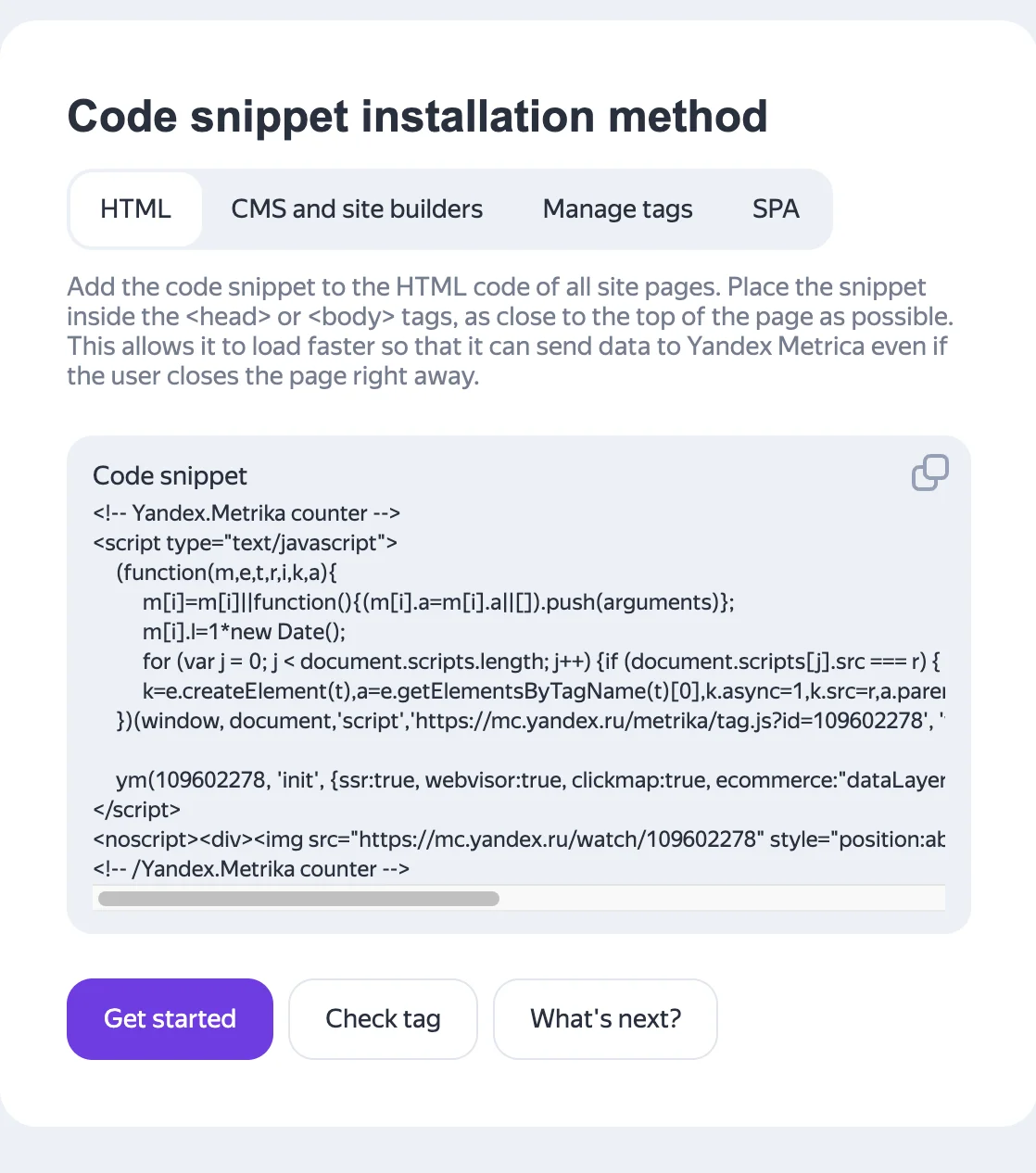
Once created, you’ll see an HTML code block like <script type="text/javascript">...</script>. Inside, there is a numeric Tag ID (usually 8-9 digits). You will need this ID for CMS platforms and plugins.
Check these toggles above the code:
- Ecommerce. Enable this if you run an online store and plan to track orders.
- Hash in the page address. This tracks URL changes after the
#symbol. For SPA sites (React, Vue, Next.js), this toggle isn't enough-you’ll also need to callym(ID, 'hit', url)manually on every route change. Without the manual call, Metrica only sees the initial landing. - Accurate bounce rate. Helps calculate bounces more precisely based on time spent on the page.
- In one line. Makes the code compact. I usually check this for easier pasting.
Click "Copy code." Open a text editor (Notepad++, VS Code, etc.) and save it temporarily so you don't lose it when switching tabs.
Note your Tag ID separately. Many CMS platforms and plugins only ask for the ID, not the full HTML. You can find a full description of parameters in the official Metrica documentation.
Step 3. Install the code on your site
The method depends on how your site is built. Here are four popular options.
Option A. HTML Site (Manual Edit)
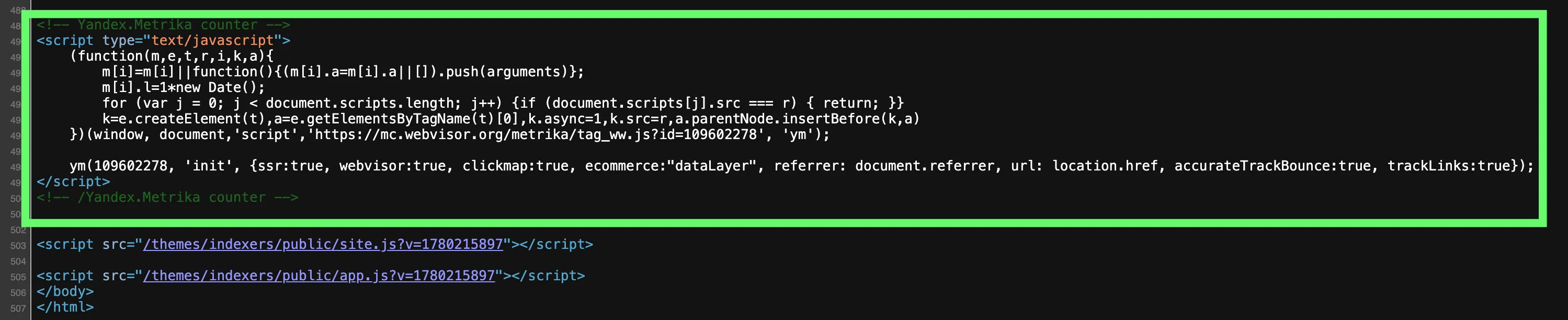
Open the template file containing the <head> section. This is usually index.html, header.php, base.html, or similar. Paste the Metrica code immediately after the opening <head> tag or just before the closing </head> tag. Yandex recommends placing it as close to the top of the <head> as possible so Webvisor can record early user actions.
If you have multiple pages coded separately, the code must be on every page. It’s much easier to use a global header template than to copy it manually into dozens of files.
Save the file and upload it to your server via FTP/SFTP. Open your site in Incognito mode and proceed to Step 4 (Verification).
Option B. WordPress
Three reliable methods:
- WPCode or "Insert Headers and Footers" plugin. A universal solution: paste the full HTML code into the "Scripts in Header" field. This is my preferred method because the tag won't disappear if you change your theme.
- Theme settings. Many modern themes (Astra, GeneratePress, OceanWP) have a "Customize → Header & Footer Scripts" section. Paste the full HTML code there.
- Via
header.phpin a child theme. Insert the code before</head>or hook it viawp_head. Use this only if you are comfortable editing theme files.
While specific "Yandex Metrica" plugins exist, many are outdated. Universal script-insertion plugins are more reliable.
Option C. Tilda
In your Tilda dashboard, open your project and go to "Site Settings" → "Analytics." Find the "Yandex Metrica Tag ID" field and paste only the number (e.g., 12345678). You don't need the full HTML; Tilda handles the script generation.
Re-publish all pages (this is crucial: the code won't appear on the live site until you re-publish).
Option D. Bitrix, Wix, InSales, Shopify, etc.
The logic is consistent: look for "Analytics," "External Scripts," or a custom HTML field for the <head> in the admin panel.
- 1C-Bitrix: It’s easiest to insert the code into the site template. Go to "Settings → Websites → Site Templates," find your template, and add the code to
header.phpbefore</head>. - InSales: Site → Web Analytics → Yandex Metrica, then paste the ID.
- Wix: Marketing & SEO → Marketing Integrations → Yandex Metrica (available on paid plans). If the integration isn't available in your region, use Settings → Custom Code with the "All Pages" trigger.
- Shopify: Online Store → Themes → Edit code →
theme.liquid, then paste the code before</head>.
Option E. Via Google Tag Manager
If you already use GTM, install Metrica using a "Custom HTML" tag. Paste the full tag code and use the "All Pages" trigger. This is convenient if you manage multiple tags and want to avoid editing the site code repeatedly.
Note: Loading via GTM adds a few milliseconds of delay. This is negligible for most sites, but high-traffic projects might prefer a direct installation.
Step 4. Verify that the tag is working
Immediately after installation, the tag status in the interface might show as "not installed" or "not working." This is normal; verification can take up to 30 minutes.
How to check:
- In the Metrica interface. Go to "Settings" → "Tag." An indicator will appear next to the number. A green circle with "working" means you're all set.
- Open your site in Incognito. Wait 1-2 minutes. Go to Metrica → "Reports" → "Traffic." You should see one visit (yours).
- Use Yandex Metrica Tag Assistant (Chrome extension). It shows which Tag ID is firing on the page and flags any errors.
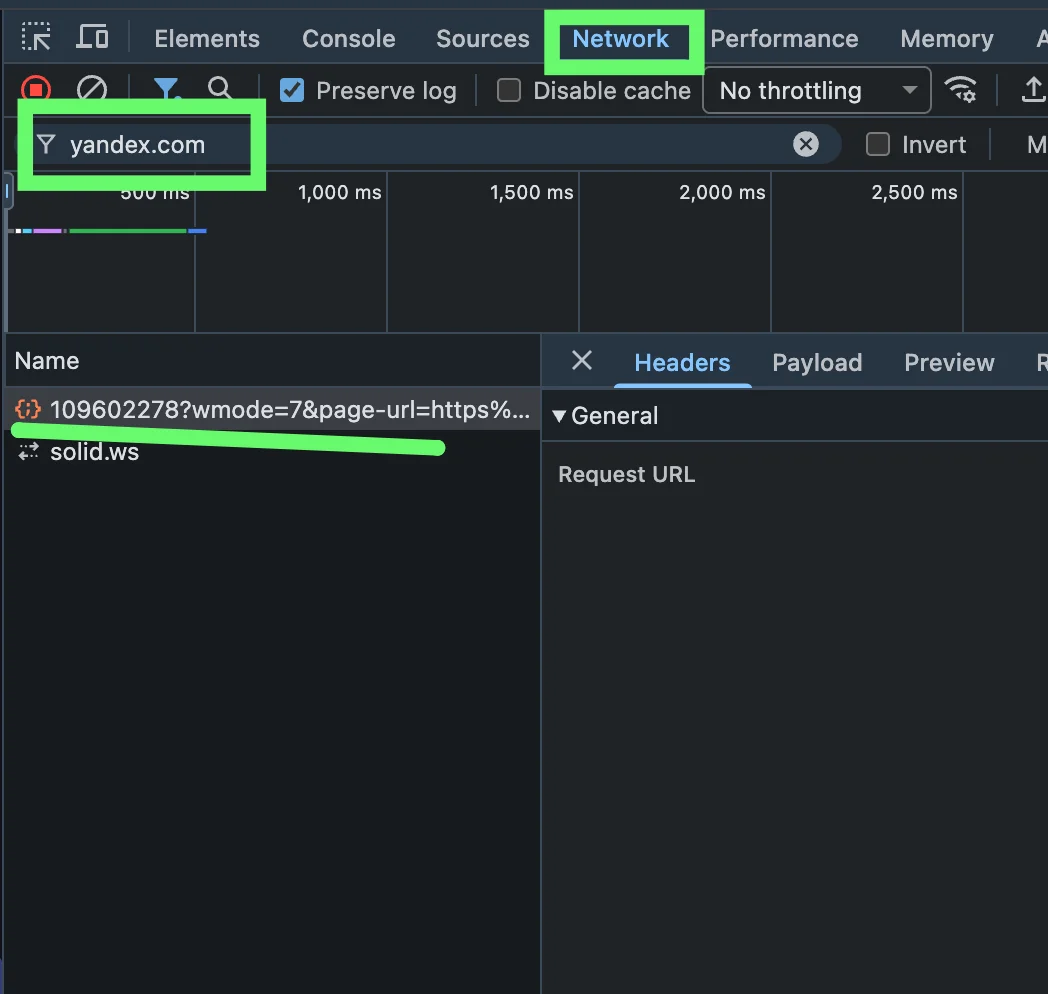
- Via DevTools. Open your site, press F12 → Network → filter by
mc.yandex. If you see requests tomc.yandex.ru/watch/..., the tag is sending data.
If the status hasn't changed after 30 minutes, check the troubleshooting section below.
Step 5. Set up basic goals
The tag tracks visits automatically, but you must define goals (conversions) yourself. A goal is a specific valuable action: a lead, an order, a call, or a registration.
Go to "Settings" → "Goals" → "Add goal." Metrica offers several types:
- Number of views. Fires if a visitor opens N pages in one session. Useful for media sites.
- Pageview. URL contains/equals/starts with. The most common type: "Thank you" pages, cart pages, or contact pages.
- JavaScript event. Triggered by calling
ym(ID, 'reachGoal', 'goal_name'). Required for buttons, forms, and element clicks. - Button click. Metrica can automatically track clicks on selected elements without code edits. This doesn't work on all layouts; for critical events, JS goals are more reliable.
Example of a JS goal: Tracking an "Order" button. In Metrica, create a "JavaScript event" goal with the ID order_click. In your button code:
<button onclick="ym(12345678, 'reachGoal', 'order_click')">
  Order Now
</button>
Replace 12345678 with your actual Tag ID. When a user clicks the button, Metrica records the conversion. For forms, use the submit event similarly.
For a standard site, I recommend setting up these 3-5 goals immediately:
- Form submission.
- "Buy" or "Order" button click.
- "Contact Us" page view.
- Phone number click (auto-goal, works out of the box).
- Scroll to footer (for landing pages).
Without goals, Metrica shows you traffic volume but not traffic quality.
What to check in Metrica after installation
The biggest mistake is installing the tag and forgetting about it. One week after setup, check these four reports:
- "Reports → Sources → Sources Summary." See where people come from: search, ads, social media, or direct visits. You'll instantly see which channels actually work.
- "Reports → Standard Reports → Traffic." Daily dynamics, average depth of view, and bounce rate. Spikes in the graph indicate either channel growth or technical issues.
- "Maps → Click Map" and "Scroll Map." See where people click (and if they're clicking what you intended) and how far down the page they scroll.
- "Webvisor." Watch real session recordings. Review 5-10 sessions a week, especially short visits (under 30 seconds) and sessions that reached a goal. This is the fastest way to find UX friction points.
For ad accounts, go to "Settings → Access" and grant access to Yandex Direct. This allows conversion data to flow into optimization strategies automatically.
Common installation errors
Tag is missing on some pages. This happens if the code was added to a specific template instead of a global header. Check various pages (Home, Product, Contacts) using Tag Assistant.
Syntax errors. Extra spaces or missing characters, often caused by copying code from a messenger. Re-copy the code directly from the Metrica interface.
Duplicate tags. Occurs when you install via a plugin but forget to remove a manual installation. Metrica will double-count visits or fail to work correctly. Use only one method.
Tag ID mismatch. You pasted an ID from one account but are checking stats in another. Verify the ID in your CMS against the one in the Metrica dashboard.
Code placed in <body> instead of <head>. Metrica will work, but Webvisor might start recording sessions with a delay. Move it to the <head>.
HTTP vs HTTPS. If your site has a redirect, ensure the tag is installed on the final version of the page.
Caching. After installation, clear your CMS cache and CDN cache (like Cloudflare). Otherwise, users will continue seeing cached pages without the tag.
Adblockers. Some users block Metrica with browser extensions. This isn't an installation error but a reality of web analytics. Depending on your audience, you might lose 5-15% of data.
SPA issues. On React/Vue/Next sites, Metrica only sees the first page load unless you manually trigger ym('hit'). Integrate ym(ID, 'hit', location.pathname) into your router's change handler.
Pro Tips
Create a separate tag for each domain. Don't mix multiple projects in one tag, or your reports will be a mess. Tags are free and unlimited.
Use Session Parameters. You can send custom data with goals, such as plan names, order totals, or customer types. This allows you to segment reports by these values.
Don't delete old tags. Even if you move to a new domain, keep the old tag in your archive. You might need that historical data a year or two later for seasonal comparisons.
Monthly health checks. Don't just set it and forget it. If developers change the site template, the tag might break. Check your dashboard at least once a month.
Set up notifications. In "Settings → Notifications," enable alerts for traffic anomalies. You'll get an email if traffic drops sharply, rather than finding out weeks later when sales tank.
FAQ
How much does Yandex Metrica cost?
Can I run Metrica and Google Analytics simultaneously?
How long until data appears in reports?
What if the tag says "not working"?
mc.yandex.ru requests. If requests are firing, wait 30 minutes for the status to update. If not, re-check your code installation.Will the tag stay if I change my theme or CMS?
Can I track subdomains with one tag?
Conclusion
Installing Yandex Metrica takes 15-20 minutes, but the data it provides lasts for years. The key is to ensure the code is on every page, enable Webvisor immediately, and don't forget to set up goals and cookie consents. Check your first reports a week after installation to start seeing the ROI on your setup.
About the Author. This article was prepared by our editorial team based on years of experience setting up analytics for WordPress, Tilda, and 1C-Bitrix projects. All steps were manually verified at the time of publication. If the Metrica interface has changed, let us know in the comments and we will update the guide.
Read also

How to Install Google Analytics on Your Website: A Step-by-Step Guide
A step-by-step guide to setting up Google Analytics 4 on your website. Learn how to create an account, configure a data stream, and install the code without any coding skills.

How to Add Your Site to Yandex Webmaster and the Search Index: A Step-by-Step Guide
Step-by-step guide to adding your website to Yandex Webmaster. Learn how to verify domain ownership using four different methods and successfully get your pages indexed.